Step 6: Make a Basic Game
Make a two player bat and ball game, one part at a time, with keyboard input, simple physics, collisions, a score and sound.
In this step, you will use the content from Step 4 to make a two player bat and ball game, which we make in seven small parts. Each part adds one feature and after each part, you run the game and see the result.
In this step, you will:
- Draw the court and the bats.
- Move the bats with the keyboard.
- Add a ball that moves and bounces.
- Find collisions between the ball and the bats.
- Keep the score.
- Add sound.
The rules of the game
- Two players use one keyboard. Each player moves a bat up and down.
- A ball moves across the screen. It bounces off the top edge, the bottom edge and the bats.
- When the ball goes off the left or right edge, the other player gets one point.
- A gray dotted line shows the middle of the screen. The score shows at the top.
| Player | Up | Down |
|---|---|---|
| Player 1 (left bat) | W |
S |
| Player 2 (right bat) | Up arrow |
Down arrow |
Before you start
Open the Source/Game1.cs file from the end of Step 4. From here, the code examples show only the code that changes, for ease of reading, new lines are highlighted. Put the new lines in the same place in your file.
Tip
You can delete the // TODO comments from the template. The examples in this step do not show them.
Part 1: Draw the court
A game needs an area to play in. This game uses a black screen with a gray dotted line down the middle. The line shows the side of each player. To draw the dots, the game uses the ball texture at a small size so that you do not need another texture.
Note
At this stage, the tutorial assumes you have implemented all the code from the previous chapters, especially Chapter 4, so if you see lines not highlighted and not in your project, it means you skipped something!
Add a field for the ball texture, below the
_batTexturefield:private GraphicsDeviceManager _graphics; private SpriteBatch _spriteBatch; private Texture2D _batTexture; private Texture2D _ballTexture;In
LoadContent, load the ball texture:protected override void LoadContent() { _spriteBatch = new SpriteBatch(GraphicsDevice); _batTexture = Content.Load<Texture2D>("bat"); _ballTexture = Content.Load<Texture2D>("ball"); }In
Draw, make the following changes:- Change
Color.CornflowerBluetoColor.Black. - Remove the line that draws the bat at position (100, 100). Part 2 draws the bats in their correct positions.
- Add the code that draws the dotted line.
protected override void Draw(GameTime gameTime) { GraphicsDevice.Clear(Color.Black); _spriteBatch.Begin(); // Draw a gray dotted line down the middle, to show the two sides. int middle = GraphicsDevice.Viewport.Width / 2; for (int y = 5; y < GraphicsDevice.Viewport.Height; y += 20) { _spriteBatch.Draw(_ballTexture, new Rectangle(middle - 4, y, 8, 8), Color.White * 0.2f); } _spriteBatch.End(); base.Draw(gameTime); }- Change
The for loop draws one dot every 20 pixels, from the top of the screen to the bottom, and each dot is an 8 by 8 pixel Rectangle. When you give SpriteBatch.Draw a rectangle, it scales the texture to fill the rectangle, so middle - 4 puts the center of each dot on the middle of the screen.
Color.White * 0.2f makes the color 80% transparent. On a black screen, a transparent white dot looks gray.
Run the game. The screen is black, with a gray dotted line down the middle.
Part 2: Add the bats
Each player needs a bat. The game keeps the position of each bat in a Vector2 field which holds two values, X and Y.
Later in Part 3, we will update the game to change the Y value and move the bats, or move the position at which the bats will be drawn.
Add two fields for the bat positions:
private GraphicsDeviceManager _graphics; private SpriteBatch _spriteBatch; private Texture2D _batTexture; private Texture2D _ballTexture; private Vector2 _leftBat; private Vector2 _rightBat;In
LoadContent, set the start position of each bat:protected override void LoadContent() { _spriteBatch = new SpriteBatch(GraphicsDevice); _batTexture = Content.Load<Texture2D>("bat"); _ballTexture = Content.Load<Texture2D>("ball"); // Put the bats at the left and right edges, in the middle of the screen. Rectangle screen = GraphicsDevice.Viewport.Bounds; float batY = (screen.Height - _batTexture.Height) / 2f; _leftBat = new Vector2(20, batY); _rightBat = new Vector2(screen.Width - 20 - _batTexture.Width, batY); }Note
We are initializing the position of the Bats in
LoadContentand notInitializebecause we also need to know the dimensions of the_batTextureto place the Bat. Avoid hardcoding asset dimensions on what you "think" the scale of an asset will be. You should always check first!In
Draw, draw the two bats:_spriteBatch.Begin(); // Draw a gray dotted line down the middle, to show the two sides. int middle = GraphicsDevice.Viewport.Width / 2; for (int y = 5; y < GraphicsDevice.Viewport.Height; y += 20) { _spriteBatch.Draw(_ballTexture, new Rectangle(middle - 4, y, 8, 8), Color.White * 0.2f); } _spriteBatch.Draw(_batTexture, _leftBat, Color.White); _spriteBatch.Draw(_batTexture, _rightBat, Color.White); _spriteBatch.End();
GraphicsDevice.Viewport.Bounds gives the size of the screen, whereas the position of a texture is its top-left corner. Thus, the code subtracts the bat height from the screen height and divides them by two, to put each bat in the vertical middle.
- The left bat is 20 pixels from the left edge.
- The right bat is 20 pixels from the right edge.
So the code also subtracts the bat width to determine its absolute position.
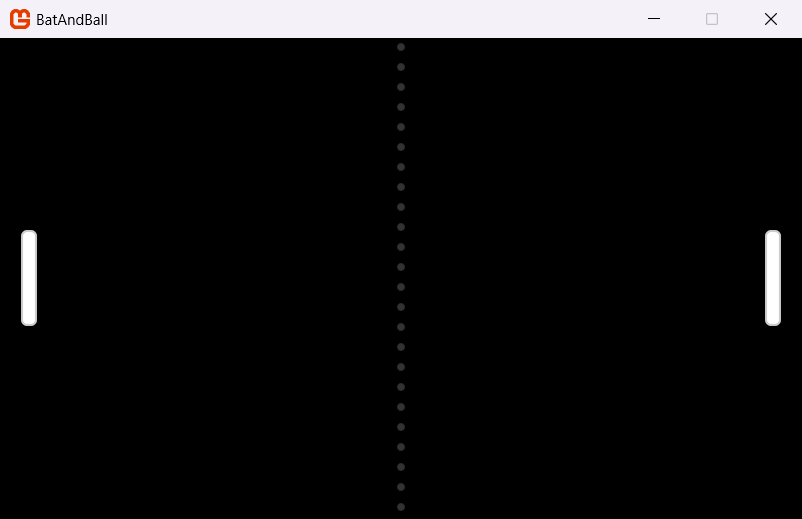
Run the game. The two bats show at the left and right edges.
 |
|---|
| Figure 6-1: The court and the two bats |
Part 3: Move the bats
For this sample. the players move the bats with the keyboard. The game however, must be able to move objects at the same speed on fast and slow computers, so to achieve this, the game multiplies the speed by the time since the last frame.
Add a constant for the speed of the bats, at the top of the class:
private const float BatSpeed = 400f;  // Pixels each second.

private GraphicsDeviceManager _graphics;
private SpriteBatch _spriteBatch;
private Texture2D _batTexture;
private Texture2D _ballTexture;

private Vector2 _leftBat;
private Vector2 _rightBat;
The speed is in pixels each second.
Note
It is a common coding practice to try and structure your code files for easy reading later,
const/staticvariables at the top, followed byprivateand thenpublicvariables. This is not a law, just a good idea to follow and be a helpful developer.Then add the following new method below the
Drawmethod:// Returns -1 to move up, 1 to move down, or 0 to stay. private static float GetDirection(KeyboardState keyboard, Keys up, Keys down) { if (keyboard.IsKeyDown(up)) { return -1; } if (keyboard.IsKeyDown(down)) { return 1; } return 0; }GetDirectionreads two keyboard keys, determining that:-1to move up1to move down- and
0to stay.
In MonoGame, the
Yvalue increases from the top of the screen to the bottom. Thus,-1moves a bat up.Finally, in
Update, add the following code that moves the bats, below the template code that exits the game:if (GamePad.GetState(PlayerIndex.One).Buttons.Back == ButtonState.Pressed || Keyboard.GetState().IsKeyDown(Keys.Escape)) Exit(); #endif KeyboardState keyboard = Keyboard.GetState(); float elapsed = (float)gameTime.ElapsedGameTime.TotalSeconds; Rectangle screen = GraphicsDevice.Viewport.Bounds; // Move the bats. Player 1 uses W and S. Player 2 uses Up and Down. _leftBat.Y += GetDirection(keyboard, Keys.W, Keys.S) * BatSpeed * elapsed; _rightBat.Y += GetDirection(keyboard, Keys.Up, Keys.Down) * BatSpeed * elapsed; _leftBat.Y = MathHelper.Clamp(_leftBat.Y, 0, screen.Height - _batTexture.Height); _rightBat.Y = MathHelper.Clamp(_rightBat.Y, 0, screen.Height - _batTexture.Height);Tip
If you wanted to be smarter about it, you could place the
KeyboardState keyboard = Keyboard.GetState();call BEFORE the exit call and then replaceKeyboard.GetState().IsKeyDownwith simplykeyboard.IsKeyDownto remove the extraGetStatecall.But this is a static call and does not save much. But it is cleaner and what most projects do.
This code does these tasks:
- Keyboard.GetState gets the state of all the keys.
elapsedis the time in seconds since the last frame, which comes from GameTime provided to theUpdatemethod.- Each bat moves by its direction, multiplied by the speed and elapsed time.
- MathHelper.Clamp keeps each bat between the top edge and the bottom edge of the screen, so values cannot exceed the expected size of the screen.
Run the game. Use W and S to move the left bat. Use the Up and Down arrow keys to move the right bat.
Part 4: Add the ball
The ball has a position and a velocity. The velocity is the speed and the direction of the ball, in pixels each second, during each frame, the game adds the velocity, multiplied by the elapsed time, to the current position. This is the basic physics of the game.
At the top of the file, add
using System;. TheRandomclass, which this part uses, is in theSystemnamespace.using System; using Microsoft.Xna.Framework; using Microsoft.Xna.Framework.Graphics; using Microsoft.Xna.Framework.Input;Add a constant for the start speed of the ball, and two fields for its position and velocity:
private const float BatSpeed = 400f;  // Pixels each second.
private const float BallSpeed = 300f; // Pixels each second.

private GraphicsDeviceManager _graphics;
private SpriteBatch _spriteBatch;
private Texture2D _batTexture;
private Texture2D _ballTexture;

private Vector2 _leftBat;
private Vector2 _rightBat;
private Vector2 _ballPosition;
private Vector2 _ballVelocity;
Add this method below the
GetDirectionmethod:private void ResetBall(int direction) { Rectangle screen = GraphicsDevice.Viewport.Bounds; _ballPosition = new Vector2(screen.Width - _ballTexture.Width, screen.Height - _ballTexture.Height) / 2f; // Start with a random vertical speed, so that each serve is different. float verticalSpeed = (Random.Shared.NextSingle() - 0.5f) * BallSpeed; _ballVelocity = new Vector2(direction * BallSpeed, verticalSpeed); }ResetBallserves the ball. It puts the ball in the middle of the screen, then it sets the velocity.- A
directionof1causes the ball to move to the right. - A
directionof -1 sends it to the left. - A random vertical speed makes each serve different.
- A
At the end of
LoadContent, serve the ball:_leftBat = new Vector2(20, batY); _rightBat = new Vector2(screen.Width - 20 - _batTexture.Width, batY); // Serve the ball toward player 2. ResetBall(1); }In
Update, below the code that moves the bats, move the ball:_leftBat.Y = MathHelper.Clamp(_leftBat.Y, 0, screen.Height - _batTexture.Height); _rightBat.Y = MathHelper.Clamp(_rightBat.Y, 0, screen.Height - _batTexture.Height); // Move the ball. _ballPosition += _ballVelocity * elapsed;Below this line, we then bounce the ball off the top and bottom edges:
_ballPosition += _ballVelocity * elapsed;

// Bounce the ball off the top and bottom edges.
if ((_ballPosition.Y < 0 && _ballVelocity.Y < 0) ||
    (_ballPosition.Y > screen.Height - _ballTexture.Height && _ballVelocity.Y > 0))
{
    _ballVelocity.Y = -_ballVelocity.Y;
}
When the ball touches the top or bottom edge, the code changes the sign of the vertical velocity. Thus, the ball goes in the opposite vertical direction. The code also examines the direction of the ball, and changes it only if the ball moves toward the edge. This prevents a problem where the ball stays at the edge and changes direction in each frame.
Note
This is a common practice in basic collision detection, you determine if the object has or is about to go out of bounds AFTER you move it, then apply a correction to either stop it or move it off on a new direction.
Below the bounce code, serve the ball again when it goes off the left or right edge:
}

// Serve again when the ball goes off the left or right edge.
if (_ballPosition.X < -_ballTexture.Width)
{
    ResetBall(-1);
}
else if (_ballPosition.X > screen.Width)
{
    ResetBall(1);
}

base.Update(gameTime);
When the ball goes fully off one edge, the code serves it toward the player who lost the point. Part 6 adds the points.
Note
This is another common technique, when an object moves out of visible view, either destroy it, or in this case, just start drawing immediately elsewhere as if it is new. The beginner 2D tutorial also does this when a bat is eaten.
the Building 2D games goes into a LOT more detail regarding collision detection, if you want to tackle that tutorial next.
In
Draw, draw the ball after the bats:_spriteBatch.Draw(_batTexture, _leftBat, Color.White); _spriteBatch.Draw(_batTexture, _rightBat, Color.White); _spriteBatch.Draw(_ballTexture, _ballPosition, Color.White);
Run the game. The ball now draws and moves, and will bounce off the top and bottom edges, as well as resetting if it goes off the screen. However, it will go straight through any bats because the game does not handle collisions yet.
Part 5: Hit the ball with the bats
To find a collision, the game creates a rectangle around the ball and another rectangle around each bat (we do not draw these, they are only for the game to see). If the two rectangles touch, the two objects are touching.
Add this method after the
ResetBallmethod:// Returns the rectangle that a texture covers at a position. private static Rectangle GetBounds(Vector2 position, Texture2D texture) { return new Rectangle((int)position.X, (int)position.Y, texture.Width, texture.Height); }GetBoundsmakes a new Rectangle based on a position and the size of a texture.Now, add this method below the
GetBoundsmethod:private void HitBall(Vector2 bat) { // Send the ball back 5% faster. _ballVelocity.X = -_ballVelocity.X * 1.05f; // Change the angle. A hit near the end of the bat gives a steeper angle. float ballCenter = _ballPosition.Y + _ballTexture.Height / 2f; float batCenter = bat.Y + _batTexture.Height / 2f; _ballVelocity.Y = (ballCenter - batCenter) * 6f; }HitBallsends the ball back and changes the direction of the horizontal velocity, this makes the ball 5% faster each time it hits something. Then, it sets a new vertical velocity from the position where the ball hit the bat. A hit near the center of the bat sends the ball straight. A hit near the end of the bat sends the ball off at a steep angle. Thus, the players can aim the ball.Note
You might wonder, why keep creating all these separate methods while writing my game? The simple answer is "reusability", you want to keep blocks of code that do a single job together and bound in their own "method" call. That way you can keep reusing them wherever you need then without duplicating code.
In
Update, below the code that bounces the ball off the edges, add the collision code:// Bounce the ball off the top and bottom edges. if ((_ballPosition.Y < 0 && _ballVelocity.Y < 0) || (_ballPosition.Y > screen.Height - _ballTexture.Height && _ballVelocity.Y > 0)) { _ballVelocity.Y = -_ballVelocity.Y; } // Bounce the ball off a bat. if (_ballVelocity.X < 0 && GetBounds(_ballPosition, _ballTexture).Intersects(GetBounds(_leftBat, _batTexture))) { HitBall(_leftBat); } else if (_ballVelocity.X > 0 && GetBounds(_ballPosition, _ballTexture).Intersects(GetBounds(_rightBat, _batTexture))) { HitBall(_rightBat); } // Serve again when the ball goes off the left or right edge. if (_ballPosition.X < -_ballTexture.Width)Rectangle.Intersects is true when two rectangles touch, meaning a collision has happened, either touching or overlapping.
The code also examines the direction of the ball, for example, the left bat hits the ball only if the ball moves to the left. Thus, the ball bounces only one time, also if it touches the bat for more than one frame.
Run the game. Hit the ball with the bats and hit the ball with the end of a bat to send it at an angle.
Part 6: Keep the score
Each player gets one point when the ball goes off the other player's edge, however the game is not currently drawing that to the scene. For this section, the game will show the score at the top of the screen with the SpriteFont you created and imported from Step 4.
Add a field for the font, and two fields for the points of each player:
private const float BatSpeed = 400f;  // Pixels each second.
private const float BallSpeed = 300f; // Pixels each second.

private GraphicsDeviceManager _graphics;
private SpriteBatch _spriteBatch;
private Texture2D _batTexture;
private Texture2D _ballTexture;
private SpriteFont _scoreFont;

private Vector2 _leftBat;
private Vector2 _rightBat;
private Vector2 _ballPosition;
private Vector2 _ballVelocity;
private int _leftScore;
private int _rightScore;
In
LoadContent, load the font:_batTexture = Content.Load<Texture2D>("bat"); _ballTexture = Content.Load<Texture2D>("ball"); _scoreFont = Content.Load<SpriteFont>("Fonts/Score");Important
If you did not create and add the Font to your
Contentproject, then your game will crash at this point with aContentLoadException. Simply put, you forgot to add it and then it cannot be found (or the name / path is wrong or a typo).In
Update, give a point to player 2 when the ball goes off the left edge:if (_ballPosition.X < -_ballTexture.Width) { _rightScore++; // Player 2 gets a point. ResetBall(-1);Give a point to player 1 when the ball goes off the right edge:
else if (_ballPosition.X > screen.Width)
{
    _leftScore++; // Player 1 gets a point.
    ResetBall(1);
In
Draw, draw the score after the ball:_spriteBatch.Draw(_ballTexture, _ballPosition, Color.White); // Draw the score in the middle, at the top of the screen. string score = $"{_leftScore} {_rightScore}"; Vector2 scoreSize = _scoreFont.MeasureString(score); Vector2 scorePosition = new Vector2((GraphicsDevice.Viewport.Width - scoreSize.X) / 2, 20); _spriteBatch.DrawString(_scoreFont, score, scorePosition, Color.White); _spriteBatch.End();
SpriteFont.MeasureString gives the size of the text in pixels and the code uses this size to put the text in the middle of the screen. The spaces in the text keep the two numbers on the two sides of the dotted line.
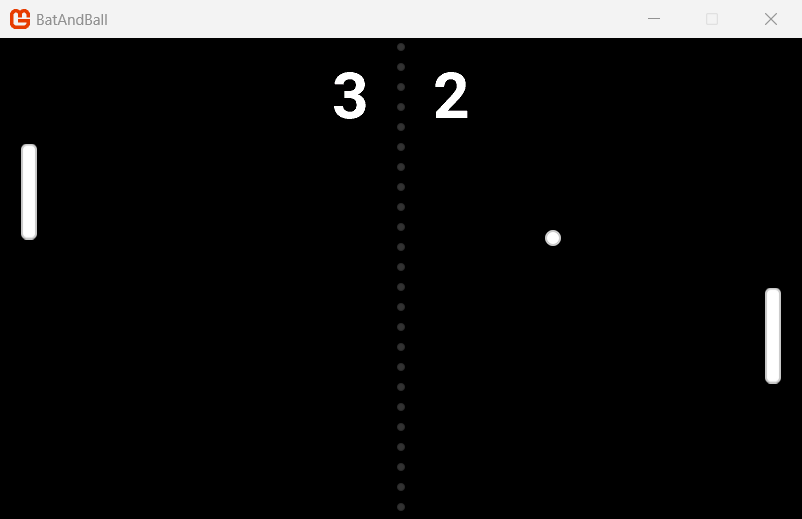
Run the game. The score shows at the top of the screen and increases when a player misses the ball.
Note
If the text is small, that simply means you did not edit the Score.spritefont and update the Size field, which defaults to 14. Just update the number to 40 as originally instructed.
MonoGame does this so you can have many SpriteFont's with varying sizes using the same font. It has to be done this way as MonoGame actually generates a texture atlas when the font is built using the spritefont definition, and that is what is rendered to the screen, not the font itself.
Part 7: Add sound
Sound tells the players when something collides in the game, for which we are using one SoundEffect for all three events. It plays the sound with a different volume and pitch for each event:
| Event | Volume | Pitch |
|---|---|---|
| The ball hits a bat | Full | Normal |
| The ball bounces off the top or bottom edge | Half | Lower |
| A new serve | Full | One octave lower |
SoundEffect.Play(volume, pitch, pan) sets these values, with:
- A volume ranging from 0 to 1.
- The pitch is from -1 (one octave lower) to 1 (one octave higher).
- The pan is from -1 (left speaker) to 1 (right speaker).
At the top of the file, add
using Microsoft.Xna.Framework.Audio;:using System; using Microsoft.Xna.Framework; using Microsoft.Xna.Framework.Audio; using Microsoft.Xna.Framework.Graphics; using Microsoft.Xna.Framework.Input;Add a field for the sound:
private Texture2D _batTexture;
private Texture2D _ballTexture;
private SpriteFont _scoreFont;
private SoundEffect _hitSound;
In
LoadContent, load the sound:_ballTexture = Content.Load<Texture2D>("ball"); _scoreFont = Content.Load<SpriteFont>("Fonts/Score"); _hitSound = Content.Load<SoundEffect>("hit");Important
Load the sound before the
ResetBall(1)line. AsResetBallplays the sound immediately, so the sound must be loaded first.At the end of the
HitBallmethod, play the sound:private void HitBall(Vector2 bat) { // Send the ball back 5% faster. _ballVelocity.X = -_ballVelocity.X * 1.05f; // Change the angle. A hit near the end of the bat gives a steeper angle. float ballCenter = _ballPosition.Y + _ballTexture.Height / 2f; float batCenter = bat.Y + _batTexture.Height / 2f; _ballVelocity.Y = (ballCenter - batCenter) * 6f; _hitSound.Play(); }In
Update, play the sound at half volume and a lower pitch when the ball bounces off an edge:if ((_ballPosition.Y < 0 && _ballVelocity.Y < 0) || (_ballPosition.Y > screen.Height - _ballTexture.Height && _ballVelocity.Y > 0)) { _ballVelocity.Y = -_ballVelocity.Y; _hitSound.Play(0.5f, -0.5f, 0f); // Half volume, lower pitch. }At the end of the
ResetBallmethod, play the sound one octave lower:private void ResetBall(int direction) { Rectangle screen = GraphicsDevice.Viewport.Bounds; _ballPosition = new Vector2(screen.Width - _ballTexture.Width, screen.Height - _ballTexture.Height) / 2f; // Start with a random vertical speed, so that each serve is different. float verticalSpeed = (Random.Shared.NextSingle() - 0.5f) * BallSpeed; _ballVelocity = new Vector2(direction * BallSpeed, verticalSpeed); // Play the sound one octave lower for each serve. _hitSound.Play(1f, -1f, 0f); }
Run the game and you will hear the serve sound when the game starts, then again for each hit and each bounce.
 |
|---|
| Figure 6-2: The completed bat and ball game |
Tip
If your game does not operate correctly, compare your code with the complete Game1.cs file.
Things to try
Use these changes to learn more:
- Change
BatSpeedandBallSpeed, then play the game again. - Change the colors in the
Drawmethod. For example, useColor.MonoGameOrangefor the bats. - Use the
panvalue to play the bat sound from the side of the bat that hits the ball. - Stop the game when one player gets 10 points, and show the winner.
- Add gamepad input with GamePad.GetState.
- Make the right bat move by itself, so that one person can play. (See AutoPong the official MonoGame sample this guide was based on for ideas)
To play the game on a phone or tablet, refer to Appendix: Going Mobile.
Next steps
You have completed this guide. To learn more, use these resources:
- Building 2D Games: a full tutorial that makes a complete game, from setup to publishing.
- The Content Builder: more information about how to build content.
- What is MonoGame?: the MonoGame concepts and the API.
Conclusion
In this step, you accomplished the following:
- You drew a court, two bats and a ball.
- You moved the bats with keyboard input and the elapsed time.
- You used velocity and simple physics to move and bounce the ball.
- You found collisions with rectangles.
- You kept the score and drew it with a SpriteFont.
- You played a sound effect with different volumes and pitches.
Test Your Knowledge
Why does the code multiply each speed by the elapsed time?
The elapsed time is the time since the last frame. If you multiply the speed by this time, objects move at the same speed on fast and slow computers.
How does the code make the ball bounce off the top edge?
It changes the sign of the vertical velocity (
_ballVelocity.Y = -_ballVelocity.Y). Thus, the ball goes in the opposite vertical direction.Which method finds a collision between the ball and a bat?
Rectangle.Intersects. It is true when the rectangle of the ball touches the rectangle of the bat.Why must the code load the sound before the
ResetBall(1)line inLoadContent?ResetBallplays the sound. If the sound is not loaded, the_hitSoundfield isnulland the game stops with an error.