Step 4: Add Content with the Content Builder
Add a texture, a sound effect and a font to your project with the MonoGame Content Builder, then show the texture on the screen.
Games use content, such as images, sounds and fonts. MonoGame uses the Content Pipeline to convert your content files into a format that is optimized for each platform, the converted files have the .xnb extension which your game loads at runtime.
In MonoGame 3.8.6 and later, the Content Builder builds your content (replacing the legacy MGCB editor and tools). The Content Builder is a small C# project in your solution that reads your content files using defined rules that you write in C#. Then, it builds the content for the platform that you build.
In this step, you will:
- Add a texture, a sound effect and a font to the project.
- Write the rules that tell the Content Builder which files to build.
- Build the content.
- Load the texture and show it on the screen.
The Content project
The "Empty Game" template puts the Content Builder project into the Content folder of your solution:
BatAndBall/
├── Content/
│   ├── Assets/              # Put your content files here.
│   │   └── readme.txt
│   ├── Builder/
│   │   └── Builder.cs       # The rules that tell the builder which files to build.
│   ├── BuildContent.targets # Runs the builder when a platform project builds.
│   └── Content.csproj
├── Platforms/
├── Resources/
└── Source/
You do four things to add content:
- Put the files in
Content/Assets. - Add a rule for the files in
Builder.cs. - Run your builder to compile your assets into
.xnbfiles in your Game's output "Content" folder. - Load the files in your game code.
Add the texture and sound files
- Right-click each of these files and select Save Link As.... Save them in the
Content/Assetsfolder of your project.


Note
You can use these three files freely in your own projects.
Add a font
MonoGame draws text with a SpriteFont. A SpriteFont (a .spritefont file) tells the Content Builder which font (file) to import, the size of the text and the characters to include. The Content Builder then makes a texture that contains all the characters.
Note
By default, the .spritefont importer will use the requested font from those installed on the computer you build your content on. However, if that machine does not have that font installed it will error.
So, it is recommended to include the ttf font file for the font you wish to import alongside your .spritefont, which the Content Pipeline will alternatively use when generating the font asset. This ensures whomever builds your game will always have the font to hand, especially useful when you use automation to automatically build your game for you.
The MonoGame templates include a SpriteFont template for the Content Builder.
To use it:
Open a terminal in the
Content/Assetsfolder:- In Visual Studio, select
View > Terminal, then go to the folder. - In Visual Studio Code, select
Terminal > New Terminal, then go to the folder. - In Rider, select
View > Tool Windows > Terminal, then go to the folder.
- In Visual Studio, select
Run this
.NETnew item template command:dotnet new mgsf -n Score -o Fonts --IncludeFontThe
mgsfitem template adds two files to theContent/Assets/Fontsfolder:Score.spritefont: the SpriteFont description.Roboto-Bold.ttf: the font file that the SpriteFont uses.
Open
Content/Assets/Fonts/Score.spritefontin your IDE.Find the
<Size>element. Change the value from14to48:<Size>48</Size>Save the file.
The Content/Assets folder now contains these files:
Content/Assets/
├── Fonts/
│   ├── Roboto-Bold.ttf
│   └── Score.spritefont
├── ball.png
├── bat.png
├── hit.wav
└── readme.txt
Tip
Keep the font file in the Assets folder. If the .spritefont file uses the name of an installed system font, all developers and build computers must have that font installed.
The font files do not need to be named the same as the .spritefont file itself, but it does need to have the Name property for the specific "Font" file in the .spritefont file for the Content Pipeline to locate it. (The Content Pipeline looks for a font by its name or its Filename using the Name property in the .spritefont file)
Add the content rules
The Content Builder builds nothing until you add rules. This makes sure that you decide which files are part of your game. You add one rule for each content file.
Open
Content/Builder/Builder.cs.Find the
GetContentCollectionmethod.Add these four lines before the
return content;line:content.Include("bat.png"); content.Include("ball.png"); content.Include("hit.wav"); content.Include("Fonts/Score.spritefont");Save the file.
Each of the Include rules above, adds one file to the content of your game. The path is relative to the Assets folder. The Content Builder uses the default importer and processor for each file type:
| File | Built as | Load as |
|---|---|---|
bat.png, ball.png |
A texture | Texture2D |
hit.wav |
A sound effect | SoundEffect |
Fonts/Score.spritefont |
A font texture and the character data | SpriteFont |
You do not add a rule for Roboto-Bold.ttf as the .spritefont file uses the font file when the Content Builder builds the SpriteFont. The Content Builder also ignores readme.txt, because no rule includes it.
Note
You can include all the files in the Assets folder with one rule:
content.Include<WildcardRule>("*");
Use this option only if you do not want to add a rule for each file. If you use this rule, you must also exclude the font file with content.Exclude<WildcardRule>("Fonts/*.ttf");, and remove files that are not content, such as readme.txt. For more information about rules, refer to Setting up the Content Builder.
Build the content
Restore and then build the project. When a platform project builds, the Content Builder runs first. It puts the built .xnb files in the Content folder of the game output.
Note
Currently, the Content Builder is an imported (not referenced) project, so by default, it does not restore its NuGet packages for a clean build like your Game project does. You need to run a manual dotnet restore for the solution before the first build. If building in VS Code, Rider or Visual Studio, those IDE's do this for you behind the scenes first automatically.
For DesktopVK, the output is in Platforms/DesktopVK/bin/Debug/net10.0/Content. For WindowsDX12, it is in Platforms/WindowsDX12/bin/Debug/net10.0-windows/Content. Each platform gets its own built content:
Content/
├── Fonts/
│   └── Score.xnb
├── ball.xnb
├── bat.xnb
└── hit.xnb
Note
If the Content Builder cannot build a file, it shows a warning or an error in the build output. A warning does not stop the build, so make sure that you read the build output if a file is missing. (which normally appears as a ContentLoadException when you try and run your game and the Content Pipeline cannot find the asset. 9/10 times this is because you named the file differently to what you load it as, it is in a different path, or it errored at build time)
Load and draw the texture
To make sure that the content is correct, we will load the bat texture and show it on the screen.
The name of each content item is the relative path to the Assets folder for the content, without the file extension.
For example:
bat.pnghas the namebatFonts/Score.spritefonthas the nameFonts/Score.
Open Source/Game1.cs. Then, make these three changes:
Add a field to hold the bat texture, below the
_spriteBatchfield:private GraphicsDeviceManager _graphics; private SpriteBatch _spriteBatch; private Texture2D _batTexture;The type of the field is Texture2D, which is a 2D image.
In
LoadContent, load the texture:protected override void LoadContent() { _spriteBatch = new SpriteBatch(GraphicsDevice); // TODO: use this.Content to load your game content here _batTexture = Content.Load<Texture2D>("bat"); }Content.Load loads a built content item using its name to retrieve the asset, the
Texture2Dtype tells MonoGame which type of content to load.In
Draw, draw the texture:protected override void Draw(GameTime gameTime) { GraphicsDevice.Clear(Color.CornflowerBlue); // TODO: Add your drawing code here _spriteBatch.Begin(); _spriteBatch.Draw(_batTexture, new Vector2(100, 100), Color.White); _spriteBatch.End(); base.Draw(gameTime); }A SpriteBatch draws 2D images.
Beginstarts a group of draw calls,Drawadds the bat at position (100, 100), andEndsends the group to the graphics device.
Save the file, then run the game. The game shows the bat on the cornflower blue screen.
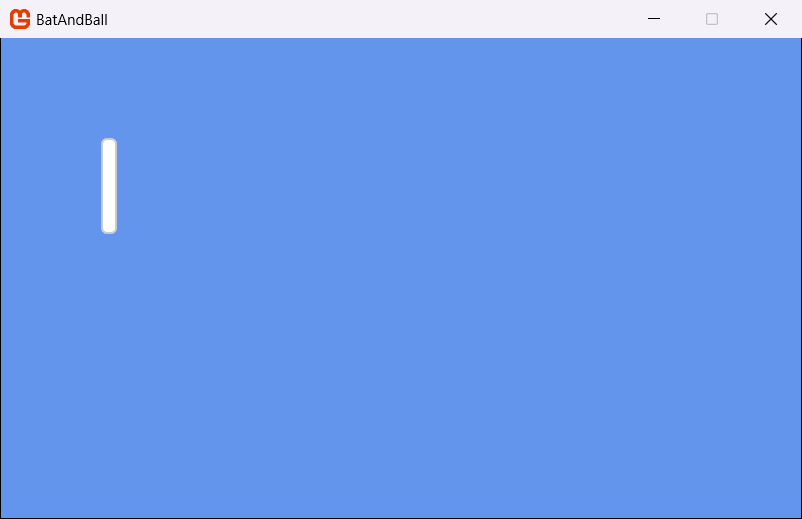 |
|---|
| Figure 4-1: The bat texture on the screen |
Step 5 explains this code in more detail.
Learn more about the Content Builder
This step shows only the basic tasks. For more information about the Content Builder, refer to these pages:
- Content Builder, Part 1: Getting Started
- Content Builder, Part 2: Setting up the Content Builder: rules, importers, processors and each type of content.
- Content Builder, Part 3: Advanced Scenarios and Automation: platform specific content, custom importers and automated builds.
- Content Builder, Part 4: Migrating from MGCB: for projects that use the MGCB Editor.
- Why use the Content Pipeline?
Conclusion
In this step, you accomplished the following:
- You added a texture, a sound effect and a font to the
Content/Assetsfolder. - You added one Content Builder rule for each content file.
- You loaded a texture and showed it on the screen.
In the next step, you will learn about the code in the project and the game loop.
Test Your Knowledge
In which folder do you put your content files?
In the
Content/Assetsfolder.What does the Content Builder build if you do not add rules to
Builder.cs?Nothing. The Content Builder builds only the files that a rule includes.
Which rule adds the file
Assets/hit.wavto your game?content.Include("hit.wav");What name do you use to load the file
Assets/Fonts/Score.spritefont?Fonts/Score. The name is the path relative to theAssetsfolder, without the file extension.Why is there no rule for the
Roboto-Bold.ttffile?The
.spritefontfile uses the font file when the Content Builder builds the SpriteFont. The font file is not content that the game loads.