Step 3: Create a New Project
Select the platforms for your game, then create a project from the MonoGame Empty Game template and run it.
In this step, you create a project using the MonoGame Empty Game (Single Project) template. This template makes one solution that contains:
- One shared folder for your game code.
- One Content Builder project for your game content.
- One project for each platform that you select.
You write your game code one time. Each platform project then builds the same code for all platforms.
In this step, you will:
- Select the platforms for your game.
- Create a new MonoGame project with the name
BatAndBall. - Build and run the project.
Select your platforms
A platform is a type of device or graphics system that your game operates on. When you create the project, you select the platforms with the --Platforms option, the template then makes one project containing each platform that you have selected.
These are the platforms that the template supports:
| Value | Platform | Operates on |
|---|---|---|
vk |
DesktopVK (Vulkan) | Windows, macOS and Linux |
dx12 |
WindowsDX12 (DirectX 12) | Windows only |
gl |
Legacy DesktopGL (OpenGL) | Windows, macOS and Linux |
dx |
Legacy WindowsDX (DirectX 11) | Windows only |
android |
Android | Android phones and tablets |
ios |
iOS | iPhone and iPad |
This guide focuses on the two newer desktop platforms, DesktopVK (Vulkan) and WindowsDX12.
Important
WindowsDX12 operates only on Windows. If you are building from macOS and Linux, select only DesktopVK.
Note
DesktopVK needs a graphics driver that supports Vulkan. If your DesktopVK game does not start, update your graphics driver, or use DesktopGL.
You can select more than one platform. Separate the values with spaces, for example --Platforms vk dx12 android ios. For more information about each platform, refer to Supported Platforms.
Create the project
Note
Use only letters and numbers in the project name. Do not start the name with a number and do not use spaces. These are .NET's rules, not ours.
- Open a terminal in the folder where you keep your projects.
- Run the command for your operating system:
The command creates the project in a new BatAndBall folder.
Tip
The template also has the short name mg-emptygame. Use this name if a different template also uses the name monogame in your environment.
Fallback: create the project without a platform selection
If you do not select platforms, the template will create a project for DesktopGL only. DesktopGL uses basic OpenGL, which operates on Windows, macOS and Linux, so use this method if your graphics driver does not support Vulkan. You can also use it to create the project from the new project dialog of your IDE.
Note
The new project dialogs do not always show the platform options. If the dialog does not show them, the project has DesktopGL only. To use DesktopGL in this guide, use DesktopGL in all the places where the guide shows DesktopVK.
To create a DesktopGL project:
- Start Visual Studio.
- Click Create a new project.
- In the search box, type
MonoGame Empty Game. - Select the MonoGame Empty Game template. Then, click Next.
- In Project name, type
BatAndBall. - In Location, select the folder for your project.
- Click Create.
Open the project in your IDE
If you created the project from your IDE, the IDE opens the project automatically. Go to the next section.
- Start Visual Studio.
- Click Open a project or solution.
- Go to the
BatAndBallfolder and selectBatAndBall.sln. Then, click Open.
Build and run the project
Important
The first build must build the full solution. The platform projects use the Content Builder project, so NuGet must restore all the projects first. Visual Studio and Rider restore the full solution when they open it.
- In the toolbar, select the DesktopVK launch profile. You can also select the BatAndBall.DesktopVK project as the startup project.
- Press
F5to build and run the game.
To run the WindowsDX12 version, select the WindowsDX12 launch profile, then press F5.
The game window opens. It shows a cornflower blue screen.
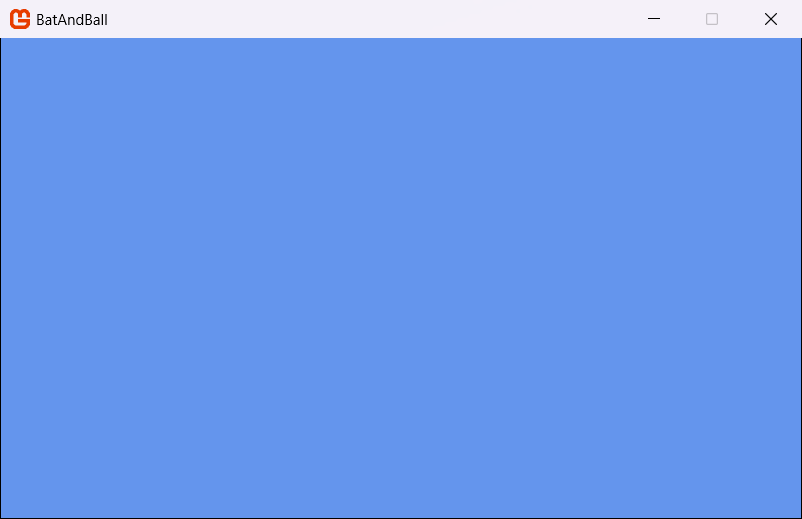 |
|---|
| Figure 3-1: The empty MonoGame game window |
This window is a complete MonoGame game that does nothing. MonoGame creates the window, starts the graphics device and runs the game loop. The game loop updates the game and draws it to the screen, many times each second. Step 5 explains the game loop.
To close the game, press Esc.
Note
The DesktopVK version writes information about Vulkan to the terminal when it starts. This information is normal.
Conclusion
In this step, you accomplished the following:
- You learned about the platforms that the template supports.
- You created a new MonoGame project for DesktopVK and WindowsDX12.
- You built and ran your first MonoGame game.
In the next step, you will add a texture, a sound effect and a font to your project.
Test Your Knowledge
Which two platforms does this guide use?
DesktopVK (Vulkan) and WindowsDX12 (DirectX 12).
Which of these two platforms operates only on Windows?
WindowsDX12.
Which platform does the template create if you do not select platforms?
DesktopGL. It operates on Windows, macOS and Linux.
Why must the first build have to restore the full solution first?
The platform projects use the Content Builder project. NuGet must restore all the projects in the solution before one platform project can build.