Chapter 02: Hot Reload
Setup workflows to reload shaders without restarting the game
Before we can dive in and start writing shader effects, we should first take a moment to focus on our development environment.
In this chapter, we will build a "hot-reload" system that will automatically detect changes to our shader files, recompile them, and load them into our running game on the fly. Writing shaders is often a highly iterative process, and keeping the cycle time fast is critical to keep development momentum up. By default, MonoGame's shader workflow may feel slow, especially compared to other modern game engines. Imagine you have written 90% of a shader, but to test the shader, you need to:
- compile the shader,
- run your game,
- navigate to the part of your game that uses the shader,
- and then you need to decide if the shader is working properly.
When you get all the way to step 4, and realize that you accidentally compiled the shader with the wrong variable value, or forgot to call a function, it will be frustrating and it will slow down your development. Now you will need to repeat all of the steps again, and again, as you develop the shader. Worse of all, it takes the fun out of shader development.
A hot-reload system allows you to get to step 4, fix whatever bug appeared, and validate the fix without needing to manually compile a shader, re-run the game, or navigate back to the relevant part of the game. This is a huge time-saver that will let us iterate and experiment with our visual effects much more quickly.
Note
The hot-reload feature will be enabled during the development of your game, but this system will not allow shaders to be dynamically reloaded in the final built game.
Sample Source
The full source for this tuturial can be located on the 3.8.5 branch of the main MonoGame.Samples repository
As shown below:
https://github.com/MonoGame/MonoGame.Samples/tree/3.8.5/Tutorials/2dShaders
Time to get started!
If you are following along with code, here is the code from the end of the previous tutorial series, Starting Code
Note
This entire chapter is optional. If you just want to skip ahead to shader code, please pick up the code at the start of Chapter 05: Transition Effect.
Compiling Shaders
Our snake-like game already has a shader effect and we can use it to validate the hot-reload system as we develop it. By default, MonoGame compiles the shader from a .fx file into a .xnb file when the game is compiled. Then, the built .xnb file is copied into the game's build directory so it is available to load when the game starts. Our goal is to recompile the .fx file, and copy the resulting .xnb file whenever the shader is changed. Luckily, we can re-use a lot of the existing capabilities of DotNet and MonoGame.
MSBuild Targets
The existing automatic shader compilation is happening because the DungeonSlime.csproj file is referencing the MonoGame.Content.Builder.Task Nuget package.
<ItemGroup>
    <PackageReference Include="Gum.MonoGame" Version="2025.12.9.1" />
    <PackageReference Include="MonoGame.Framework.DesktopGL" Version="3.8.*" />
    <PackageReference Include="MonoGame.Content.Builder.Task" Version="3.8.*" />
</ItemGroup>
Nuget packages can add custom build behaviours and the MonoGame.Content.Builder.Task package is adding a step to the game's build that runs the MonoGame Content Builder tool. These sorts of build extensions use a conventional .prop and .target file system. If you are interested, you can learn more about how Nuget packages may extend MSBuild systems on Microsoft's documentation website. For reference, this is the .targets file for the MonoGame.Content.Builder.Task.
This line defines a new MSBuild step, called IncludeContent:
<Target
  Name="IncludeContent"
  DependsOnTargets="RunContentBuilder"
  Condition="('$(EnableMGCBItems)' == 'true' OR '@(MonoGameContentReference)' != '') And '$(DesignTimeBuild)' != 'true'"
  Outputs="%(ExtraContent.RecursiveDir)%(ExtraContent.Filename)%(ExtraContent.Extension)"
  BeforeTargets="BeforeCompile"
  AfterTargets="ResolveProjectReferences">
You can learn more about what all the attributes do in MSBuild. Of particular note, the BeforeTargets attribute causes MSBuild to run the IncludeContent target before the BeforeCompile target is run, which is a standard target in the dotnet sdk.
The IncludeContent target can run manually by invoking dotnet build by hand. In VSCode, open the embedded terminal to the DungeonSlime project folder, and run the following command:
Warning
The dotnet commands need to be run from the DungeonSlime folder, otherwise dotnet will not know which project to use.
dotnet build -t:IncludeContent
You should see log output indicating that the content for the DungeonSlime game was built.
Dotnet Watch
There is a tool called dotnet watch that comes with the standard installation of dotnet. Normally, dotnet watch is used to watch for changes to .cs code files, recompile, and reload those changes into a program without restarting the program. You can try out dotnet watch's normal behaviour by opening VSCode's embedded terminal to the DungeonSlime project, and running the following command. The game should start normally:
dotnet watch
Tip
Use the ctrl + c key at the same time to quit the dotnet watch terminal process.
Once the game has started, open the TitleScene.cs file in the DungeonSlime's "Scenes" folder and comment out the Clear() function call in the title screen's Draw() method. Save the file, and you should see the title screen immediately stop clearing the background on each frame. If you restore the line and save again, the scene will start clearing the background again:
public override void Draw(GameTime gameTime)
{
    // Core.GraphicsDevice.Clear(new Color(32, 40, 78, 255));
As we are focusing on only intending to Hot Reload shaders in this tutorial, we do not want to recompile .cs files, but rather just the .fx files. dotnet watch can be configured to execute any MSBuild target rather than just recompile code. If you want to experiment with also hot-reloading .cs files you can, but it is not the focus of this tutorial.
The following command uses the existing target provided by the MonoGame.Content.Builder.Task.
dotnet watch build -- --target:IncludeContent
Tip
All arguments passed after the -- characters are passed to the build command itself, not dotnet watch
Now, when you change a .cs file, all of the content files are rebuilt into .xnb files. Changes to .fx shader files will not trigger a content rebuild with this configuration, yet.
Note
When you run dotnet watch, that is actually short hand for dotnet watch run. The run command runs your game, but the build only builds your program. Going forward, the dotnet watch build commands will not start your game, they will just build the content. To learn more, read the official documentation for dotnet watch.
However, the .xnb files are still not being copied from the Content/bin folder to DungeonSlime's runtime folder, the .xnb files are only copied during the full MSBuild of the game. The IncludeContent target on its own does not have all the context it needs to know how to copy the files in the final game project. To solve this, we need to introduce a new <Target> that copies the final .xnb files into DungeonSlime's runtime folder.
The existing MonoGame.Content.Builder.Task system knows what the files are, so we can re-use properties defined in the MonoGame package.
Add this <Target> block to your .csproj file:
<Project Sdk="Microsoft.NET.Sdk">
  <!-- ... -->

  <Target Name="BuildAndCopyContent" DependsOnTargets="IncludeContent">
    <Message Text="Rebuilding Content..." Importance="High"/>
    <Copy
        SourceFiles="%(ExtraContent.Identity)"
        DestinationFiles="$(OutDir)%(ExtraContent.ContentDir)%(ExtraContent.RecursiveDir)%(ExtraContent.Filename)%(ExtraContent.Extension)"
        SkipUnchangedFiles="true"
    />
  </Target>

  <!-- ... -->
</Project>
Now, instead of calling the IncludeContent target directly, change your terminal command to invoke the new BuildAndCopyContent target:
dotnet watch build -- --target:BuildAndCopyContent
If you delete the DungeonSlime/bin/Debug/net9.0/Content folder, make an edit to a .cs file and save, you should see the DungeonSlime/bin/Debug/net9.0/Content folder be restored.
Note
The DungeonSlime/bin/Debug/net9.0/Content folder may not appear immediately in your IDE's file view. Sometimes the IDE caches the file system and does not notice the file change right away. Try opening the folder in your operating system's file explorer instead.
The next step is to only invoke the target when .fx files are edited instead of .cs files. These settings can be configured with custom MSBuild item configurations. Open the DungeonSlime.csproj file and add this <ItemGroup> to specify configuration settings:
<Project Sdk="Microsoft.NET.Sdk">
  <!-- ... -->

  <ItemGroup>
    <!-- Adds .fx files to the `dotnet watch`'s file scope -->
    <Watch Include="Content/**/*.fx;"/>
    <!-- Removes the .cs files from `dotnet watch`'s compile scope -->
    <Compile Update="**/*.cs" Watch="false" />
  </ItemGroup>

  <!-- ... -->
</Project>
Now when you rerun the command from earlier, it will only run the IncludeContent target when .fx files have been changed. All edits to .cs files are ignored. Try adding a blank line to the grayscaleEffect.fx file, and notice the dotnet watch process rebuild the content.
However, if you ever use dotnet watch for anything else in your workflow, then the configuration settings are too aggressive, because they will be applied all invocations of dotnet watch. We need to fix this before moving on, so that dotnet watch is not broken for future use cases. The ItemGroup can be optionally included when a certain condition is met. We will introduce a new MSBuild property called OnlyWatchContentFiles:
<ItemGroup Condition="'$(OnlyWatchContentFiles)'=='true'">
  <!-- Adds .fx files to the `dotnet watch`'s file scope -->
  <Watch Include="Content/**/*.fx;"/>
  <!-- Removes the .cs files from `dotnet watch`'s compile scope -->
  <Compile Update="**/*.cs" Watch="false" />
</ItemGroup>
And now when dotnet watch is invoked, it needs to specify the new parameter:
dotnet watch build --property OnlyWatchContentFiles=true -- --target:BuildAndCopyContent
Note
The watch command will still listen for .cs file edits in the MonoGameLibrary project, because those .cs files are grouped as a different compile unit. This is not a huge problem, but if you want to keep your content reloads to a strict minimum, then you need to add the same <Compile Update="**/*.cs" Watch="false" /> snippet to the MonoGameLibrary.csproj file. In this series, we will just accept that there are some extraneous content operations.
The command is getting long and hard to type, and if we want to add more configuration, it will likely get even longer. Instead of invoking dotnet watch directly, it can be run as a new <Target> MSBuild step. Add this <Target> to your DungeonSlime.csproj file:
<Project Sdk="Microsoft.NET.Sdk">
  <!-- ... -->

  <Target Name="WatchContent">
    <Exec Command="dotnet watch build --property OnlyWatchContentFiles=true -- --target:BuildAndCopyContent"/>
  </Target>

  <!-- ... -->
</Project>
And now from the terminal, run the following dotnet build command:
dotnet build -t:WatchContent --tl:off
Caution
What does --tl:off do?
This tutorial series assumes you are using net9.0, but theoretically there is nothing stopping you from using later version of dotnet. However, in net9.0, a breaking change was made to the dotnet build's log output. There is special code that tries to optimize the log output from dotnet build so that it does not feel overwhelming to look at. This system is called the terminal logger, and sadly it hides the underlying log output from dotnet watch. It was opt-in for net8.0, but in net9.0, it is enabled by default.
If you are using net9.0 or above, you must include this option.
--tl:off disables the terminal logger so that the dotnet watch log output does not get intercepted by the terminal logger.
We now have a way to dynamically recompile shaders on file changes and copy the .xnb files into the game folder! There are a few final adjustments to make to the configuration.
Dotnet Watch, but smarter
First, you may notice some odd characters in the log output after putting the dotnet watch inside the WatchContent target. This is because there are emoji characters in the standard dotnet watch log stream, and some terminals do not understand how to display those, especially when streamed between dotnet build. To disable the emoji characters, a DOTNET_WATCH_SUPPRESS_EMOJIS environment variable needs to be set:
<Target Name="WatchContent">
  <Exec Command="dotnet watch build --property OnlyWatchContentFiles=true -- --target:BuildAndCopyContent"
        EnvironmentVariables="DOTNET_WATCH_SUPPRESS_EMOJIS=1"/>
</Target>
Next, the IncludeContent target is doing a little too much work for our use case. It is trying to make sure the MonoGame Content Builder tools are installed. For our use case, we can opt out of that check by disabling the existing AutoRestoreMGCBTool MSBuild property. It also makes sense to pass --restore:false as well so that Nuget packages are not restored on each content file change:
<Target Name="WatchContent">
  <Exec Command="dotnet watch build --property OnlyWatchContentFiles=true --property AutoRestoreMGCBTool=false -- --target:BuildAndCopyContent --restore:false"
        EnvironmentVariables="DOTNET_WATCH_SUPPRESS_EMOJIS=1"/>
</Target>
To experiment with the system, re-run the following command:
dotnet build -t:WatchContent --tl:off
And then cause some sort of compiler-error in the grayscaleEffect.fx file, such as adding the line, "tunafish" to the top of the file. When you save it, you should see the terminal spit out an error containing information about the compilation failure,
error X3000: unrecognized identifier 'tunafish'
Remove the "tunafish" line and save again, and the watch program should log some lines similar to these:
  dotnet watch : Started
    .../Content/effects/grayscaleEffect.fx
    Copying Content...

  Build succeeded.
      0 Warning(s)
      0 Error(s)

  Time Elapsed 00:00:01.40
  dotnet watch : Exited
  dotnet watch : Waiting for a file to change before restarting dotnet...
Reload shaders in-game
Now anytime the .fx files are modified, they will be recompiled and copied into the game's runtime folder. However, the game itself does not know to reload the Effect instances. In this section, we will create a utility to extend the capabilities of the ContentManager to enable it to respond to these dynamic file updates.
It is important to make a distinction between assets the game expects to be reloaded and assets that the game does not care about reloading. This tutorial will demonstrate how to create an explicit system where individual assets opt into being hot reloadable, rather than creating a system where all assets automatically handle dynamic reloading.
Extending Content Manager
Currently, the grayscaleEffect.fx is being loaded in the GameScene's LoadContent() method like this:
// Load the grayscale effect
_grayscaleEffect = Content.Load<Effect>("effects/grayscaleEffect");
The .Load() function in the existing ContentManager is almost sufficient for our needs, but it returns a regular Effect, which has no understanding of the dynamic nature of the new content workflow. So we need to add that functionality here:
Create a new
Contentfolder within the MonoGameLibrary project, add a new file namedContentManagerExtensions.cs, and add the following code for the foundation of the new system:using System; using System.IO; using Microsoft.Xna.Framework.Content; namespace MonoGameLibrary.Content; public static class ContentManagerExtensions { }Within this Extension class we will add an extension method for the existing
MonoGame'sContentManagerclass and give it capabilities it does not currently have:public static T Watch<T>(this ContentManager manager, string assetName) { var asset = manager.Load<T>(assetName); return asset; }This new
Watchfunction is an opportunity to enhance how content is loaded. Use this new function to load the_grayscaleEffecteffect, open theGameScene.csclass in theScenesfolder of the DungeonSlime project and update theLoadContent()method where the_grayscaleEffectis loaded:_grayscaleEffect = Content.Watch<Effect>("effects/grayscaleEffect");And finally, adding the
usingstatement at the top of theGameSceneclass to let it know where the new extension method we created is located:using System; using DungeonSlime.GameObjects; using DungeonSlime.UI; using Microsoft.Xna.Framework; using Microsoft.Xna.Framework.Audio; using Microsoft.Xna.Framework.Graphics; using MonoGameGum; using MonoGameLibrary; using MonoGameLibrary.Content; using MonoGameLibrary.Graphics; using MonoGameLibrary.Scenes;
Setting the correct working path
There are two common ways to run your game as you develop:
- running the game from a terminal by typing
dotnet run, - running the game from an IDE.
When you use dotnet run, dotnet itself sets the working directory of the program to the folder that contains your DungeonSlime.csproj file. However, many IDEs will set the working directory to be within the /bin (output) folder of your project, next to the built DungeonSlime.dll/exe file.
The working directory is important, because the ContentManagerExtensions.cs class we are writing will use the manager.RootDirectory to reassemble content .xnb file paths. The manager.RootDirectory is derived from the working directory, so if the working directory changes based on how we start the game, our ContentManagerExtensions.cs code will produce different .xnb paths.
The actual .xnb files are copied to the /bin subfolder, so at the moment, running the game from the terminal will not work unless you manually specify the working directory.
To solve this we can force the working directory by adding the <RunWorkingDirectory> property to the DungeonSlime.csproj file:
<Project Sdk="Microsoft.NET.Sdk">
  <!-- ... -->

  <PropertyGroup>
    <RunWorkingDirectory>bin/$(Configuration)/$(TargetFramework)</RunWorkingDirectory>
  </PropertyGroup>

  <!-- ... -->
</Project>
The WatchedAsset class
The new system will also need to keep track of additional information for each asset that we plan to be hot-reloadable, the data will live in a new class, WatchedAsset<T>.
Add a new file named
WatchedAsset.csin the MonoGameLibrary/Content folder and paste the following into the new class:using System; using Microsoft.Xna.Framework.Content; namespace MonoGameLibrary.Content; public class WatchedAsset<T> { /// <summary> /// The latest version of the asset. /// </summary> public T Asset { get; set; } /// <summary> /// The last time the <see cref="Asset"/> was loaded into memory. /// </summary> public DateTimeOffset UpdatedAt { get; set; } /// <summary> /// The name of the <see cref="Asset"/>. This is the name used to load the asset from disk. /// </summary> public string AssetName { get; init; } }Next, we need to update the
Watchmethod in the ContentManagerExtensions to return aWatchedAsset<T>instead of the directEffectit used originally:public static WatchedAsset<T> Watch<T>(this ContentManager manager, string assetName) { var asset = manager.Load<T>(assetName); return new WatchedAsset<T> { AssetName = assetName, Asset = asset, UpdatedAt = DateTimeOffset.Now, }; }Now, any asset that requires hot-reloading, such as the
_grayscaleEffectin theGameScene, also needs to change to use aWatchedAsset<Effect>instead of simply anEffect:// The grayscale shader effect. private WatchedAsset<Effect> _grayscaleEffect;Important
This will cause a few compilation errors where the
_grayscaleEffectis used throughout the rest of theGameScene. The compile errors appear because_grayscaleEffectused to be anEffect, but now theEffectis actually available as_grayscaleEffect.Asset.To correct the errors found, simply update the
Drawmethod of theGameScenewith the following using the guidance above:public override void Draw(GameTime gameTime) { // Clear the back buffer. Core.GraphicsDevice.Clear(Color.CornflowerBlue); if (_state != GameState.Playing) { // We are in a game over state, so apply the saturation parameter. _grayscaleEffect.Asset.Parameters["Saturation"].SetValue(_saturation); // And begin the sprite batch using the grayscale effect. Core.SpriteBatch.Begin(samplerState: SamplerState.PointClamp, effect: _grayscaleEffect.Asset); } else { // Otherwise, just begin the sprite batch as normal. Core.SpriteBatch.Begin(samplerState: SamplerState.PointClamp); } // Rest of the Draw method...
Reload Extension
It is time to extend the ContentManagerExtensions extension method that the game code will use to "opt in" to reloading an asset. From the earlier section, anytime a .fx file is updated, the compiled .xnb file will be copied into the game's runtime folder, the operating system will keep track of the last time the .xnb file was written, and we can leverage that information with the WatchedAsset<T>.UpdatedAt property to understand if the .xnb file is newer than the current loaded Effect.
The following
TryRefreshmethod will take aWatchedAsset<T>and update the innerAssetproperty if the.xnbfile is newer. The method returnstruewhen the asset is reloaded, which will be useful later. Add the following method to theContentManagerExtensionsclass:public static bool TryRefresh<T>(this ContentManager manager, WatchedAsset<T> watchedAsset) { // get the same path that the ContentManager would use to load the asset var path = Path.Combine(manager.RootDirectory, watchedAsset.AssetName) + ".xnb"; // ask the operating system when the file was last written. var lastWriteTime = File.GetLastWriteTime(path); // when the file's write time is less recent than the asset's latest read time, // then the asset does not need to be reloaded. if (lastWriteTime <= watchedAsset.UpdatedAt) { return false; } // clear the old asset to avoid leaking manager.UnloadAsset(watchedAsset.AssetName); // load the new asset and update the latest read time watchedAsset.Asset = manager.Load<T>(watchedAsset.AssetName); watchedAsset.UpdatedAt = lastWriteTime; return true; }Next, at the top of the
Update()method in theGameSceneclass, add the following line to opt into reloading the_grayscaleEffectasset:public override void Update(GameTime gameTime) { // Update the grayscale effect if it was changed Content.TryRefresh(_grayscaleEffect); // Ensure the UI is always updated _ui.Update(gameTime);Now, when the
grayscaleEffect.fxfile is modified, thedotnet watchsystem will compile it to an.xnbfile, copy it to the game's runtime folder, and then in theUpdate()loop, theTryRefresh()method will load the new effect and the new shader code will be running live in the game.Try it out by adding this temporary line right before the
returnstatement in thegrayscaleEffect.fxfile, make sure thedotnet build -t:WatchContent --tl:offis running in the terminal and start the game in debug as normal:float4 MainPS(VertexShaderOutput input) : COLOR { // Sample the texture float4 color = tex2D(SpriteTextureSampler, input.TextureCoordinates) * input.Color; // Calculate the grayscale value based on human perception of colors float grayscale = dot(color.rgb, float3(0.3, 0.59, 0.11)); // create a grayscale color vector (same value for R, G, and B) float3 grayscaleColor = float3(grayscale, grayscale, grayscale); // Linear interpolation between he grayscale color and the original color's // rgb values based on the saturation parameter. float3 finalColor = lerp(grayscale, color.rgb, Saturation); // modify the final color, just for debug visualization finalColor *= float3(1, 0, 0); // Return the final color with the original alpha value return float4(finalColor, color.a); }
This video shows the effect changing.
| Figure 2-1: The reload system is working |
Note
Make sure to remove the change to the shader, unless you prefer the greyscale background red.
Final Touches
The hot reload system is almost done, however, there are a few quality of life features to finish up.
File Locking
There is an edge case in the TryRefresh() function that when the .xnb file is checked to see if it is more recent than the in-memory asset that it might still be in use (locked) by the MonoGame Content Builder, it may still be actively writing the .xnb file when the function runs. The game will fail to read the file while it is being written. The solution to this problem is to simply wait and try loading the .xnb file in the next frame. The trick however, is that C# does not have a standard way to check if a file is currently locked.
The best way to check is to simply try and open the file, and if an Exception is thrown, assume the file is not readable.
To start, add the following function to the
ContentManagerExtensionsclass:private static bool IsFileLocked(string path) { try { using FileStream _ = new FileStream(path, FileMode.Open, FileAccess.ReadWrite, FileShare.None); // File is not locked return false; } catch (IOException) { // File is locked or inaccessible return true; } }Then modify the
TryRefreshfunction by returning early if the file is locked:public static bool TryRefresh<T>(this ContentManager manager, WatchedAsset<T> watchedAsset) { // get the same path that the ContentManager would use to load the asset var path = Path.Combine(manager.RootDirectory, watchedAsset.AssetName) + ".xnb"; // ask the operating system when the file was last written. var lastWriteTime = File.GetLastWriteTime(path); // when the file's write time is less recent than the asset's latest read time, // then the asset does not need to be reloaded. if (lastWriteTime <= watchedAsset.UpdatedAt) { return false; } // wait for the file to not be locked. if (IsFileLocked(path)) return false; // clear the old asset to avoid leaking manager.UnloadAsset(watchedAsset.AssetName); // load the new asset and update the latest read time watchedAsset.Asset = manager.Load<T>(watchedAsset.AssetName); watchedAsset.UpdatedAt = lastWriteTime; return true; }
Access the old Asset on reload
Anytime a new asset is loaded, the old asset is unloaded from the ContentManager. However, it will be helpful to be able to access in-memory data about the old asset version. For shaders, there is metadata and runtime configuration that should be applied to the new version.
This will be more relevant in the next chapter, but let us handle this now:
Modify the
TryRefreshfunction to containoutparameter of the old asset, updating the method signature to the following:public static bool TryRefresh<T>(this ContentManager manager, WatchedAsset<T> watchedAsset, out T oldAsset)Before updating the
watchedAsset.Asset, set theoldAssetas the previous in-memory asset:public static bool TryRefresh<T>(this ContentManager manager, WatchedAsset<T> watchedAsset, out T oldAsset) { oldAsset = default; // get the same path that the ContentManager would use to load the asset var path = Path.Combine(manager.RootDirectory, watchedAsset.AssetName) + ".xnb"; // ask the operating system when the file was last written. var lastWriteTime = File.GetLastWriteTime(path); // when the file's write time is less recent than the asset's latest read time, // then the asset does not need to be reloaded. if (lastWriteTime <= watchedAsset.UpdatedAt) { return false; } // wait for the file to not be locked. if (IsFileLocked(path)) return false; // clear the old asset to avoid leaking manager.UnloadAsset(watchedAsset.AssetName); // return the old asset oldAsset = watchedAsset.Asset; // load the new asset and update the latest read time watchedAsset.Asset = manager.Load<T>(watchedAsset.AssetName); watchedAsset.UpdatedAt = lastWriteTime; return true; }Do not forget that the place where the
grayscaleEffectcalls theTryRefresh()function in theGameSceneclass will also need to include a no-op out variable (essentially passing a reference, but we discard the result):public override void Update(GameTime gameTime) { // Update the grayscale effect if it was changed Content.TryRefresh(_grayscaleEffect, out _); // Ensure the UI is always updated _ui.Update(gameTime);
Refresh Convenience Function
Finally, we need to address a subtle usability bug in the existing code. The TryRefresh function may Unload an asset if a new version is loaded. However, it is not obvious that the ContentManager instance doing the Unload operation is the same ContentManager instance that loaded the original asset in the first place.
To solve the possible collision between ContentManager instances, we need to update the following:
Add a
ContentManagerproperty to theWatchedAsset<T>class so that the asset itself knows whichContentManageris responsible for unloading old versions:/// <summary> /// The <see cref="ContentManager"/> instance that loaded the asset. /// </summary> public ContentManager Owner { get; init; }Adjust the
WatchAssetfunction of theContentManagerExtensionsclass to fill in this new property:public static WatchedAsset<T> Watch<T>(this ContentManager manager, string assetName) { var asset = manager.Load<T>(assetName); return new WatchedAsset<T> { AssetName = assetName, Asset = asset, UpdatedAt = DateTimeOffset.Now, Owner = manager }; }Then, in the
TryRefreshfunction, a small assertion can be added to validate theContentManageris the same:public static bool TryRefresh<T>(this ContentManager manager, WatchedAsset<T> watchedAsset, out T oldAsset) { oldAsset = default; // ensure the ContentManager is the same one that loaded the asset if (manager != watchedAsset.Owner) { throw new ArgumentException($"Used the wrong ContentManager to refresh {watchedAsset.AssetName}"); } // get the same path that the ContentManager would use to load the asset var path = Path.Combine(manager.RootDirectory, watchedAsset.AssetName) + ".xnb"; // ask the operating system when the file was last written. var lastWriteTime = File.GetLastWriteTime(path); // when the file's write time is less recent than the asset's latest read time, // then the asset does not need to be reloaded. if (lastWriteTime <= watchedAsset.UpdatedAt) { return false; } // wait for the file to not be locked. if (IsFileLocked(path)) return false; // clear the old asset to avoid leaking manager.UnloadAsset(watchedAsset.AssetName); // return the old asset oldAsset = watchedAsset.Asset; // load the new asset and update the latest read time watchedAsset.Asset = manager.Load<T>(watchedAsset.AssetName); watchedAsset.UpdatedAt = lastWriteTime; return true; }It is annoying to have use the
ContentManagerdirectly to callTryRefreshin the game loop. It would be easier to rely on the newOwnerproperty, so let us fix that by adding another Refresh overload to theWatchedAsset<T>to just use the manager it is already referencing:Add the following method to the
WatchedAsset<T>class:/// <summary> /// Attempts to refresh the asset if it has changed on disk using the registered owner <see cref="ContentManager"/>. /// </summary> public bool TryRefresh(out T oldAsset) { return Owner.TryRefresh(this, out oldAsset); }Finally, update the
GameSceneto use the new convenience method to refresh the_grayscaleEffectinstead:public override void Update(GameTime gameTime) { // Update the grayscale effect if it was changed _grayscaleEffect.TryRefresh(out _); // Ensure the UI is always updated _ui.Update(gameTime);
Auto start the watcher
The hot reload system is working, but it has a serious weakness. You have to remember to run the following command before starting development of your game if you want the Hot Reload system to function:
dotnet build -t:WatchContent --tl:off
After you run that command in a terminal, you still need to start your game normally. If you only started the game, but never started the watcher, then your shaders would never be hot reloadable. This kind of error is dangerous because it can undermine trust in the hot reload system itself.
It would be better if the watcher was started automatically when the game is run, so that you only need to do one thing, run the game.
In the
ContentManagerExtensions.csfile, add this function to the class:[Conditional("DEBUG")] public static void StartContentWatcherTask() { var args = Environment.GetCommandLineArgs(); foreach (var arg in args) { // if the application was started with the --no-reload option, then do not start the watcher. if (arg == "--no-reload") return; } // identify the project directory var projectFile = Assembly.GetEntryAssembly().GetName().Name + ".csproj"; var current = Directory.GetCurrentDirectory(); string projectDirectory = null; while (current != null && projectDirectory == null) { if (File.Exists(Path.Combine(current, projectFile))) { // the valid project csproj exists in the directory projectDirectory = current; } else { // try looking in the parent directory. // When there is no parent directory, the variable becomes 'null' current = Path.GetDirectoryName(current); } } // if no valid project was identified, then it is impossible to start the watcher if (string.IsNullOrEmpty(projectDirectory)) return; // start the watcher process var process = Process.Start(new ProcessStartInfo { FileName = "dotnet", Arguments = "build -t:WatchContent --tl:off", WorkingDirectory = projectDirectory, WindowStyle = ProcessWindowStyle.Normal, UseShellExecute = false, CreateNoWindow = false }); // when this program exits, make sure to emit a kill signal to the watcher process AppDomain.CurrentDomain.ProcessExit += (_, __) => { try { if (!process.HasExited) { process.Kill(entireProcessTree: true); } } catch { /* ignore */ } }; AppDomain.CurrentDomain.UnhandledException += (sender, e) => { try { if (!process.HasExited) { process.Kill(entireProcessTree: true); } } catch { /* ignore */ } }; }Next add the following
usingstatements to the top of the file:using System.Reflection; using System.Diagnostics;Finally, call the new function from the DungeonSlime's
Program.csfile before starting the game:MonoGameLibrary.Content.ContentManagerExtensions.StartContentWatcherTask(); using var game = new DungeonSlime.Game1(); game.Run();
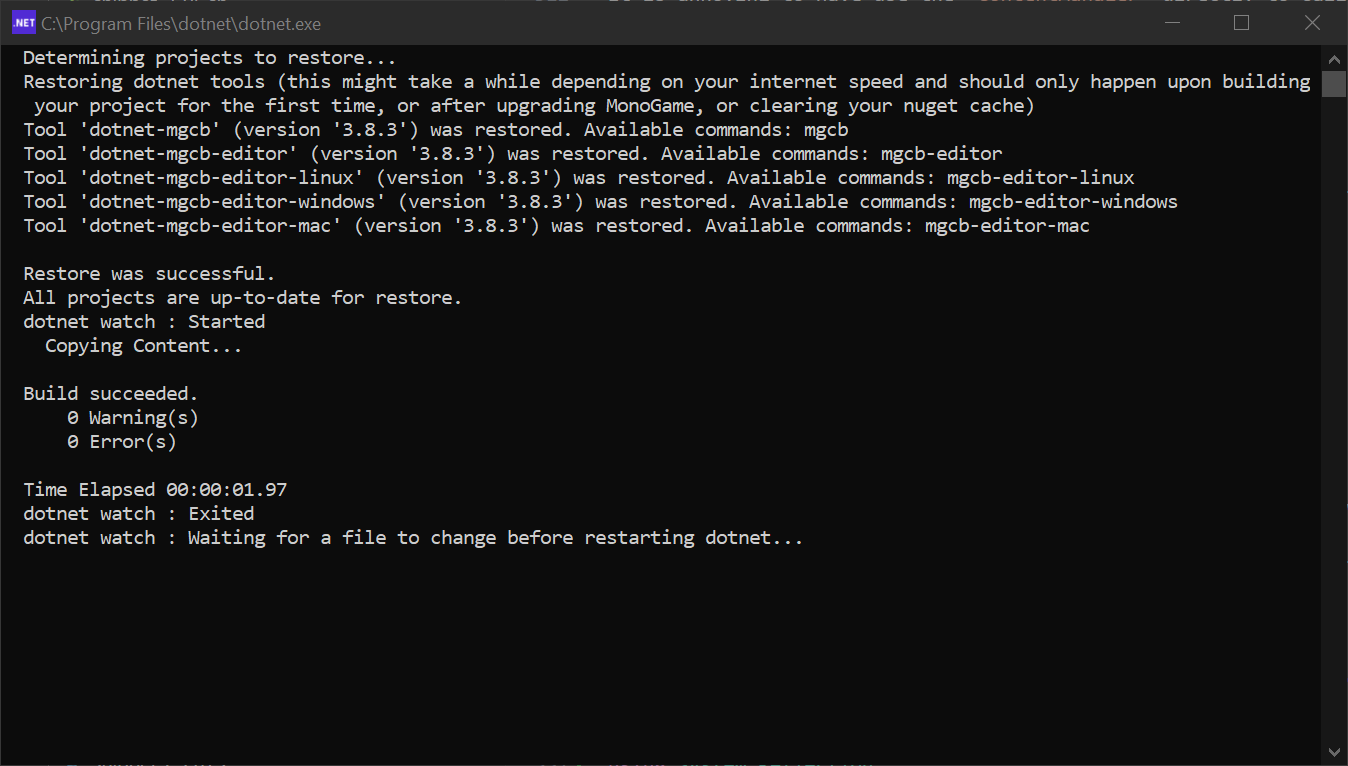
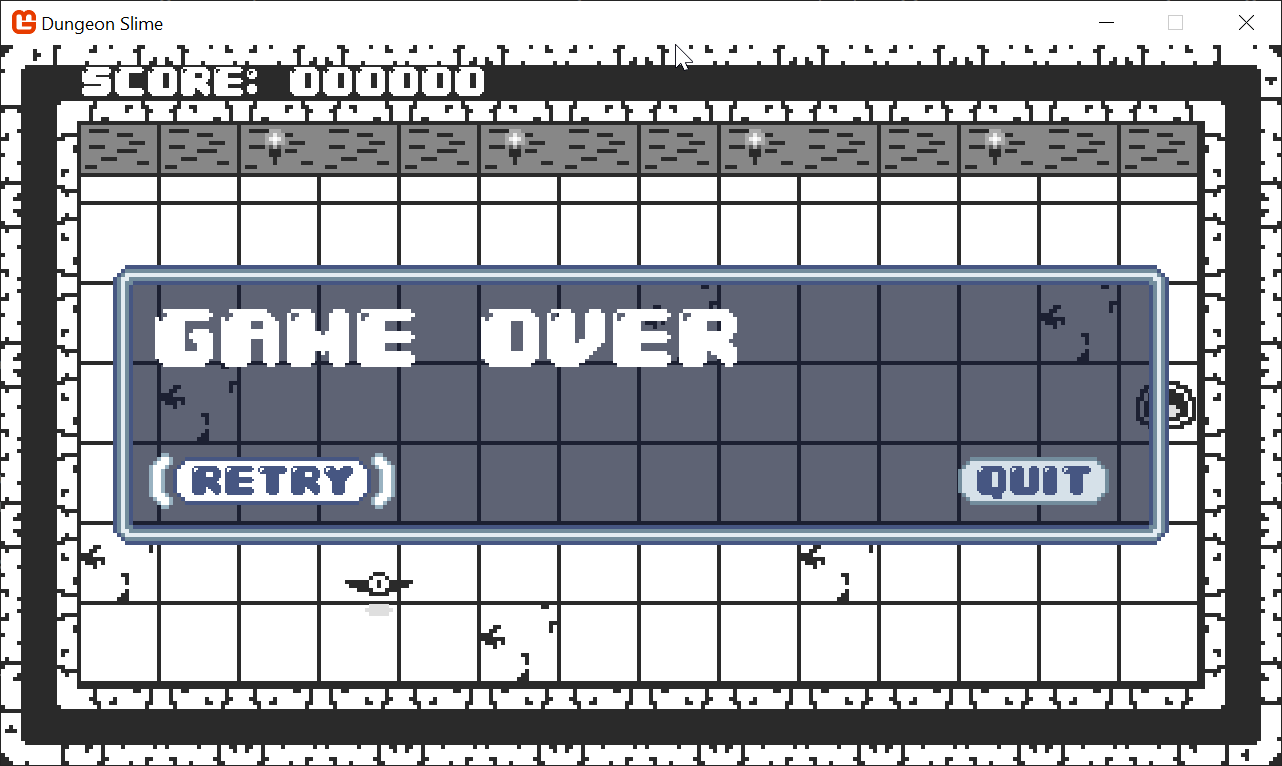
Now you do not need to start the watcher manually, instead, you can simply start the game normally (either "debug -> Start new instance, or simply dotnet run) and the watcher process should appear in the background/another window.
Tip
If you are running the game via the terminal, and you do not want to start the background content watcher, add the --no-reload command line option.
dotnet run --no-reload
 |
 |
|---|---|
| Figure 2-2: The content watcher will appear as a separate window | Figure 2-3: The DungeonSlime game appears as normal |
Tip
The DungeonSlime.csproj file declares the project's OutputType as WinExe. This means that the standard output of the game do not appear in your console by default. It is also the reason the watcher application appears in a separate window. If you ever need to see your game's console output, switch the OutputType to Exe. When you do this, the watcher will not appear in a separate window.
Conclusion
And with that, we have a powerful hot-reload system in place! In this chapter, you accomplished the following:
- Configured
dotnet watchto monitor your.fxshader files. - Created a custom MSBuild
<Target>to automatically recompile and copy your built shaders. - Wrote a C# wrapper class,
WatchedAsset<T>, to track asset file changes. - Extended
ContentManagerwith aTryRefreshmethod to load new assets into the running game.
This new workflow is going to make the rest of our journey much more fun and productive. In the next chapter, we will build on this foundation by creating a Material class to help us organize and safely interact with our shaders.
You can find the complete code sample for this chapter - here.
Continue to the next chapter, Chapter 03: The Material Class.